

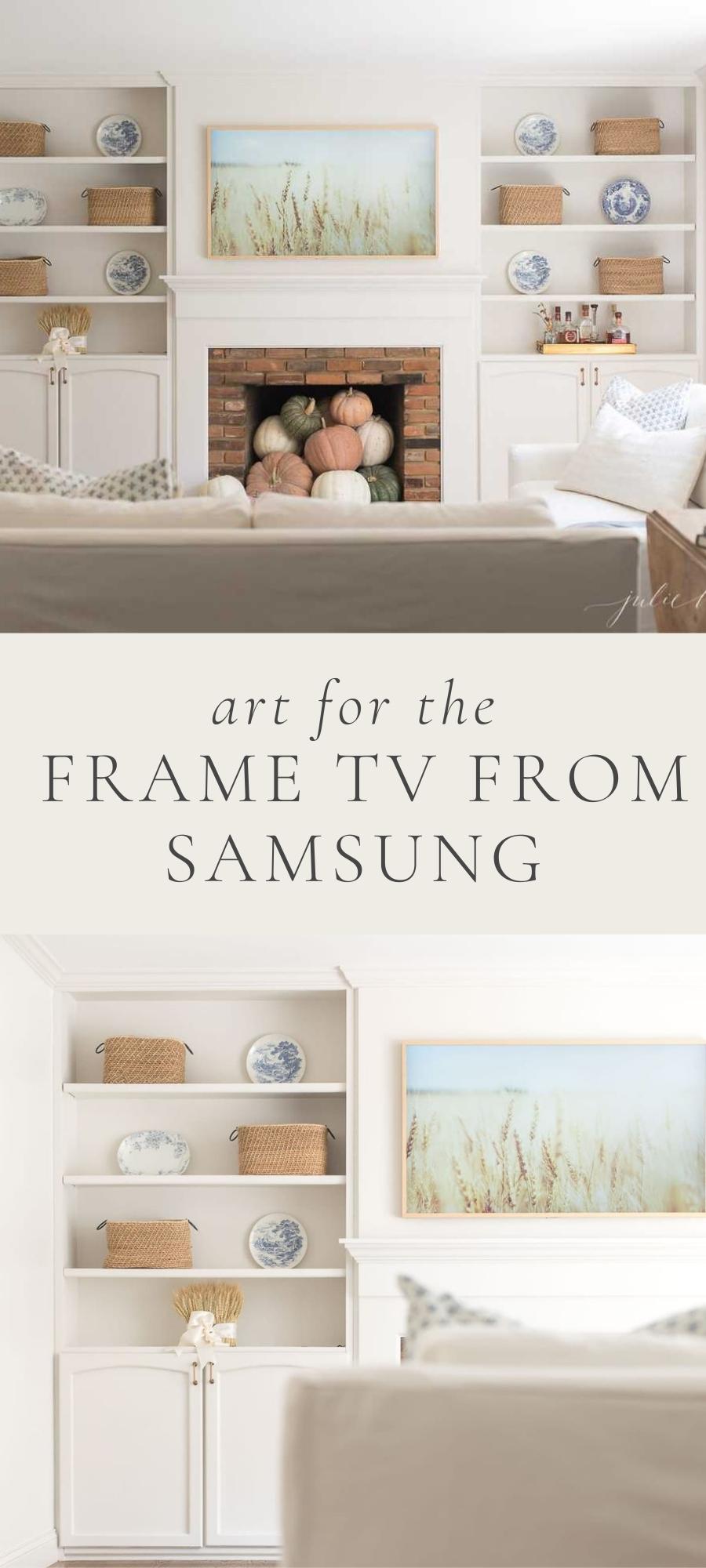
Whether you have a Frame TV or want to make your TV look like art, I have compiled my favorite sources and tips to make finding and selecting your art as easy as it is to change it!
Save time and money with free art from the public domain, create your own and inexpensive alternatives to pricey subscriptions. We first purchased a Frame TV in 2017 and needless to say, I’m obsessed! We subsequently purchased 2 additional for our bedroom and laundry room.
I struggled to find art and properly size it, but finally found amazing options and how to navigate it. I compiled everything I learned into this resource to make updating your art effortless and fun!
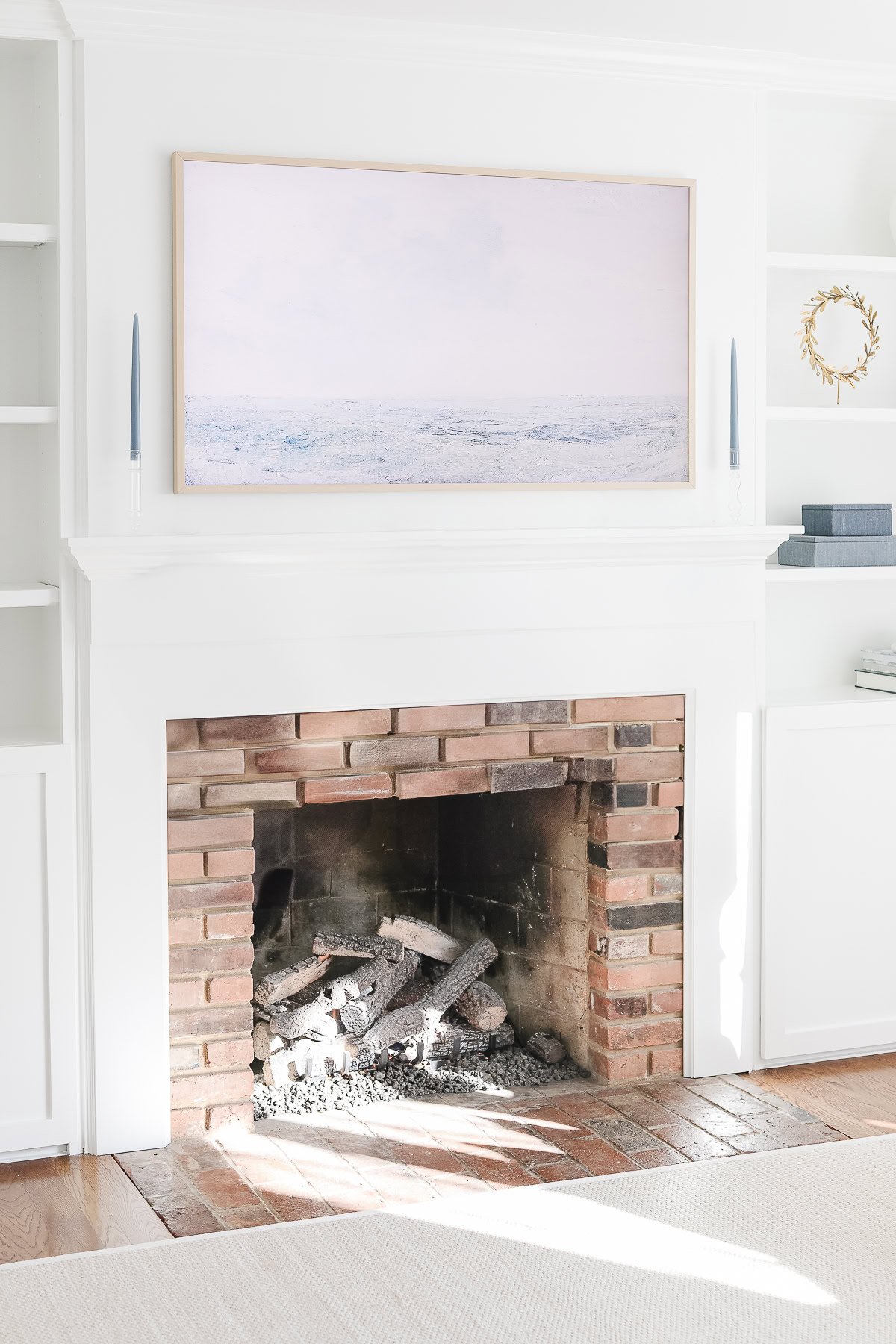
I love customizing our TVs to fit my mood, transition with the seasons and enhance our celebrations. It is inexpensive to keep up with my style, which has evolved a lot over the past 8 years since we first purchased a Frame TV. I love integrating family photos (easily accessible through the Frame’s Google Photos and iCloud Photos feature), but for everyday, I love artwork.
Samsung The Frame TV
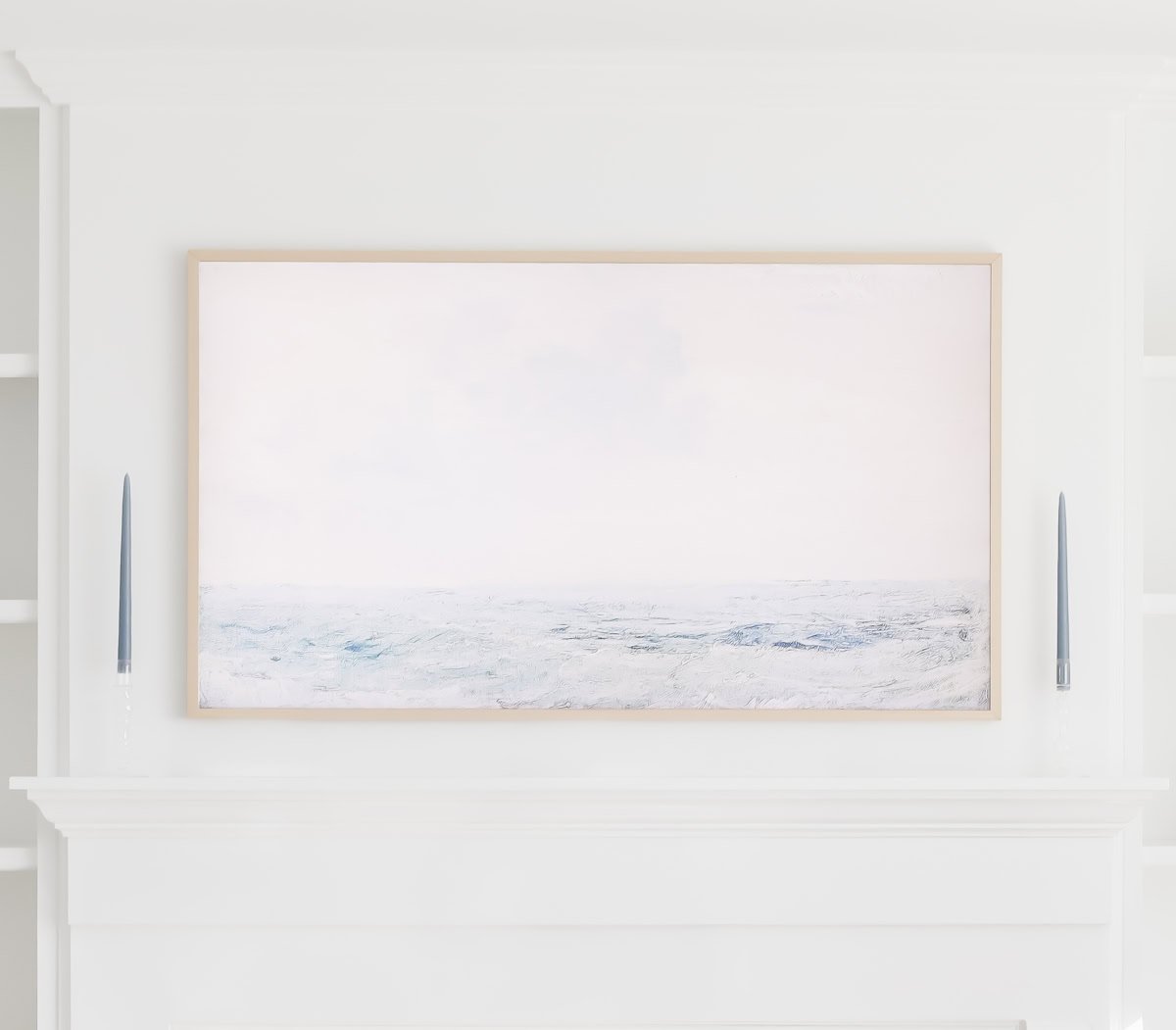
Samsung created The Frame TV in 2017 that blends seamlessly into any space. It looks and hangs like art and is easy to update.
TV Art Sources
Samsung Art Subscription
Complimentary – Free 1 year subscription for 43″ and 50″ models and 2 year subscription for 55″+ models. How it works: Purchase and activate a qualified TV before 6/20/26 and in ‘Apps’ open the Samsung Promotion app on your TV. Click ‘Get It Now’ to view offer and follow instructions to redeem.
Paid – $4.99 a month or $49.90 a year gives you access to thousands of pieces of art that you can effortlessly change. Art can only be accessed directly through your Frame TV.
Art in the Public Domain
I lean into art in the Public Domain because there are an abundance of options, they look and feel authentic and are free! You can find my complete list of free art sources below.
Etsy
TV art on Etsy is almost exclusively available free in the Public Domain, but resized for your convenience. It’s typically very affordable. This is a great option to quickly replace art with ease at a minimal cost.
BFF Print Shop
This shop offers collections so if you find a piece, you can easily change out to another similar, without having to search for another piece.
Juniper
This is a great source for Studio McGee style with muted neutral tones. Follow instructions to get the right fit for your screen.
TV Art Size
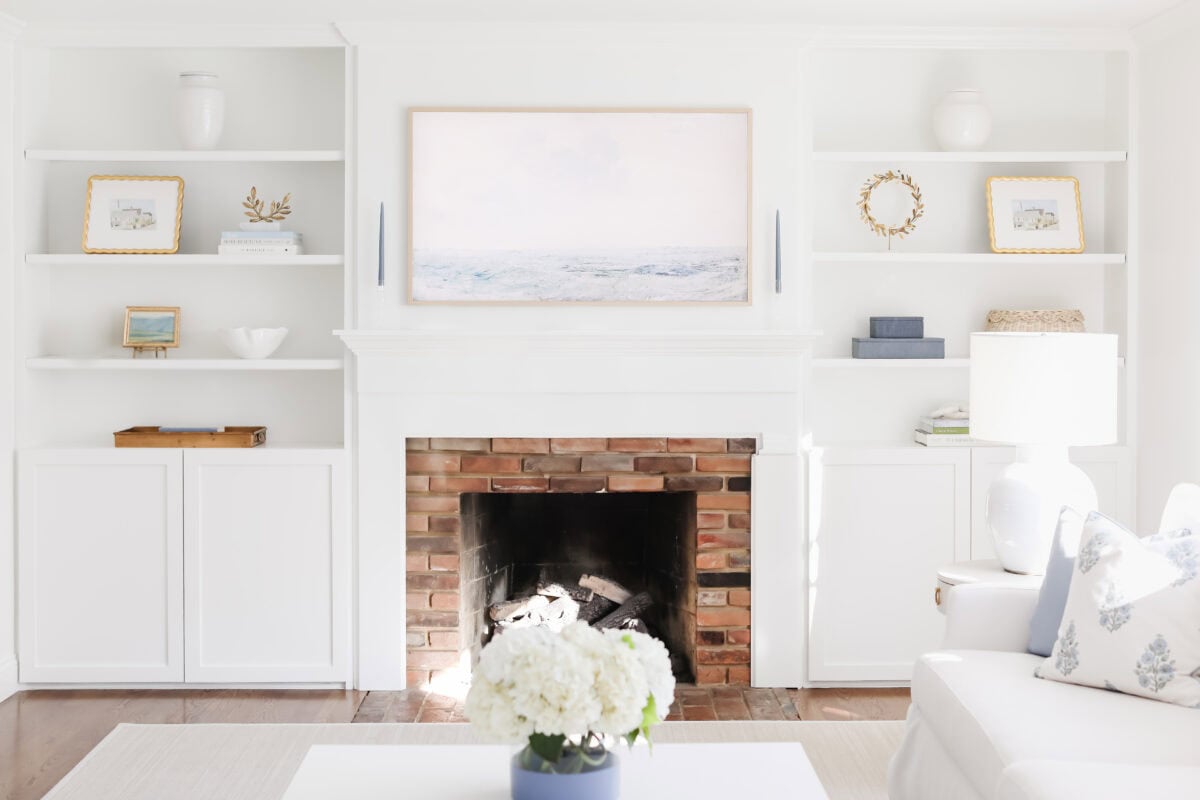
Regardless of displays size, art for TVs should be a 16:9 aspect ratio or 3840 x 2160 pixels. The correct size will appear sharp and prevent distortion, unwanted cropping and black bars.
As a photographer and website editor of over 18 years, I recommend using 300dpi or higher. This can be set upon export in Lightroom, PhotoShop, Canva, Mac’s Preview and alternative apps and programs.
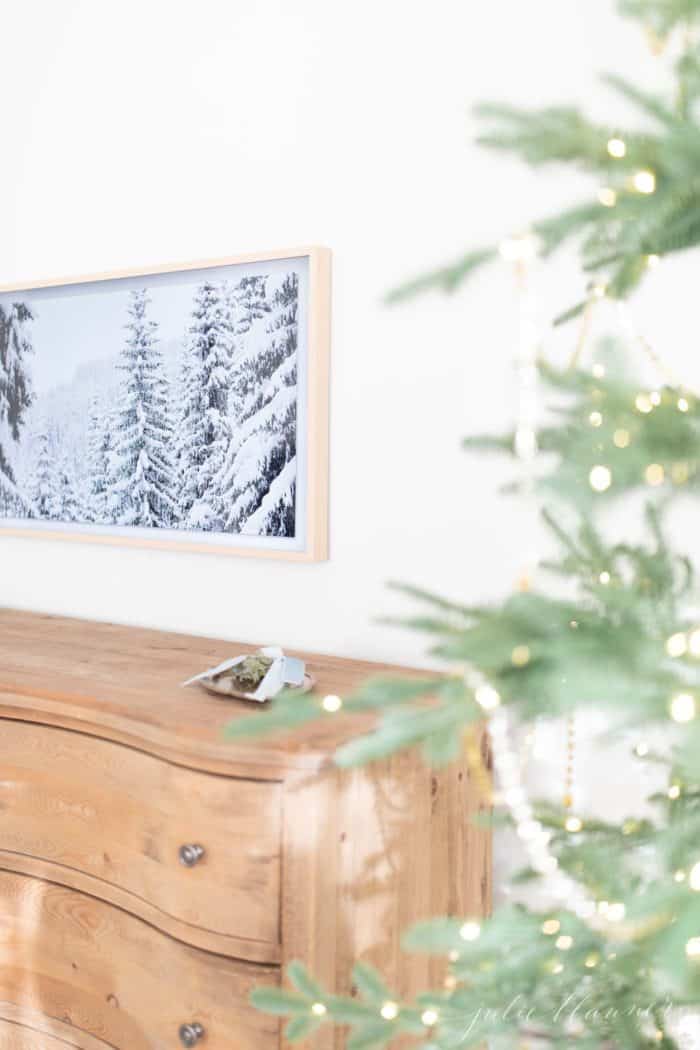
If the size is off, it may default to a mat, like you see below.
How to Resize Images for a TV
- In image editing app, software or preview feature, set the image crop size to 2840 x 2160 pixels.
- Save as a Jpeg or PNG
I created a Canva template that you can use at no cost. Upload or drop your image into the frame, adjust as needed and click download.
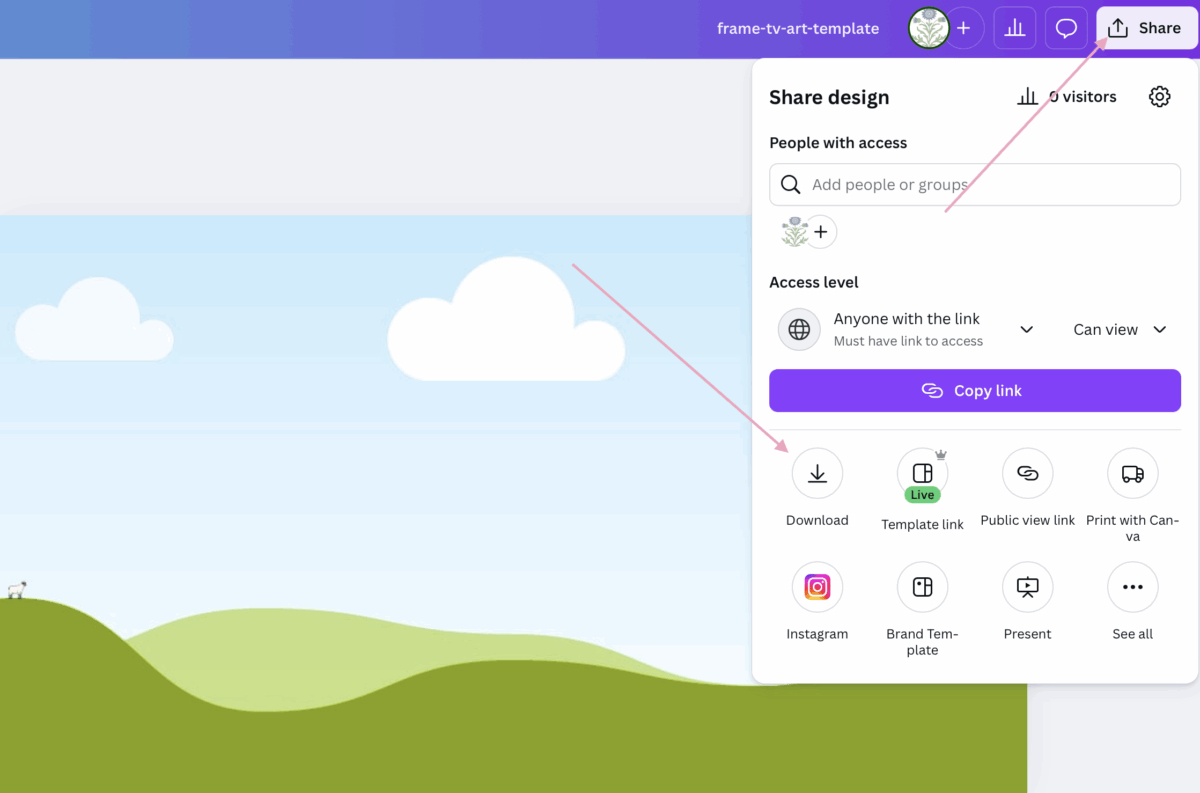
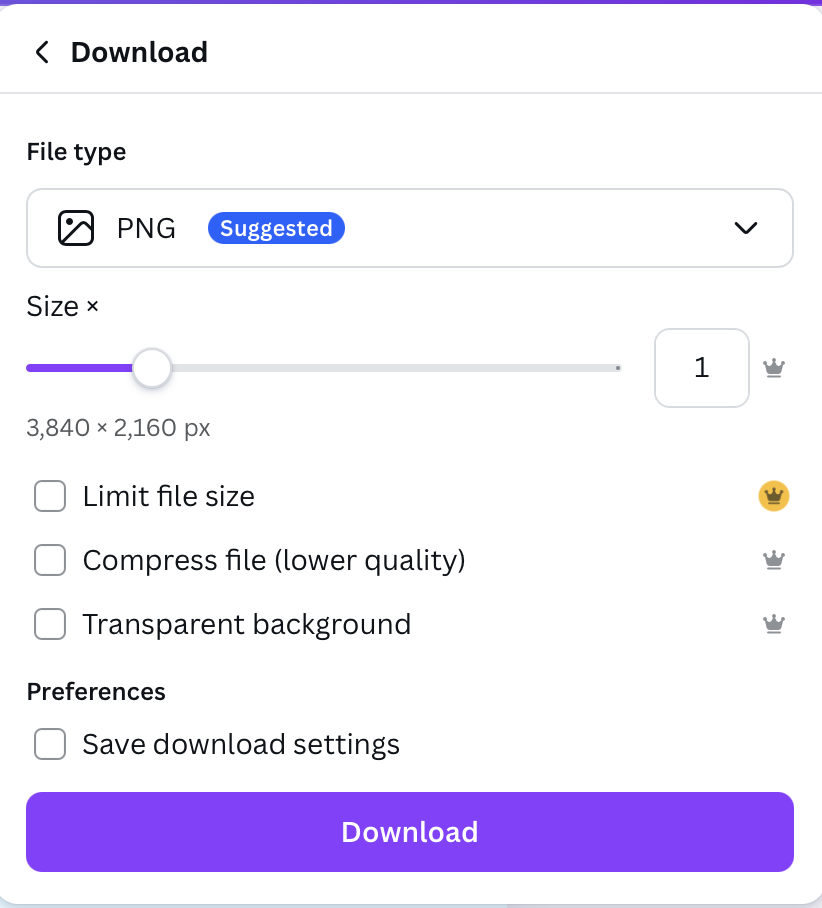
Photos cannot be edited on The Frame TV.
How to Upload TV Art to Samsung Frame TV
- Download or save art to your phone.
- Using the Samsung SmartThings App, select devices and ‘+’ to add Frame TV. Then, tap to select your TV.
- Select ‘Art Mode’ and ‘Add Photos’. Press ‘Save on The Frame’ in the bottom right corner or ‘Slideshow’ if you prefer.
- Select the photo you want to be displayed.
- Select artistic effects (painting, drawing, etc) if desired.
Adjust Art on Frame TV
- On the SmartThings App, select your Frame TV.
- Tap ‘Art Mode’ > ‘Settings’.
- Adjust brightness, color/warmth, night mode, sleep and motion sensitivity.
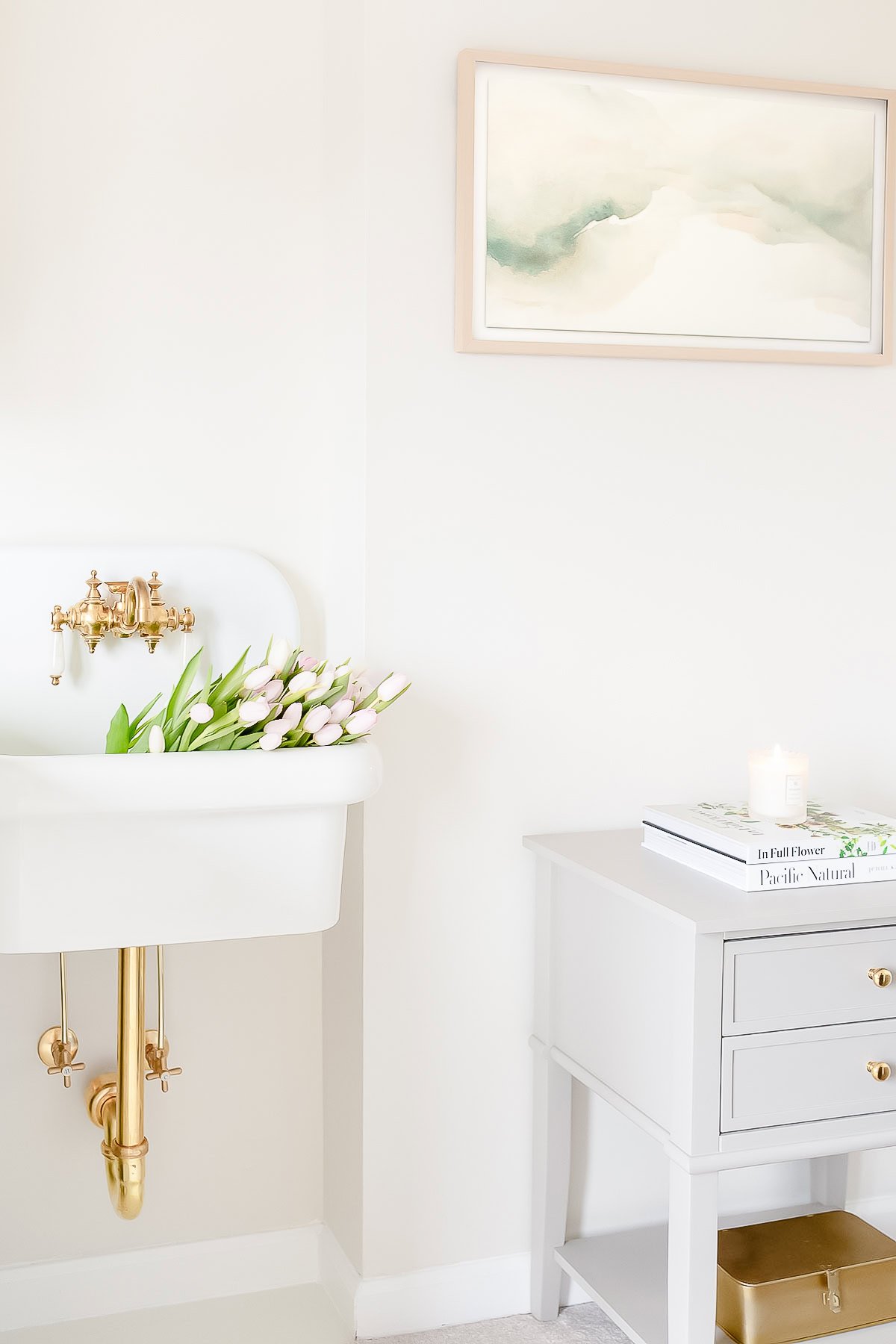
TIP: Tone Down the Glow
I struggled with the bright glow of our original 2017 Frame TV when it was in art mode. If you darken the screen, it helps make your art look more authentic.
To tone it down, edit the brightness and tone through the tv remote or Samsung app on your phone.
I’ve found that the more “white” an image is, the more it tends to glow. But pulling the brightness and tone way down helps tremendously! You can also correct an image to be a little “warmer” in the app, which helps it blend into your decor and feel less like a computer monitor, and more like real art!
How to Display Personal Photos on TV
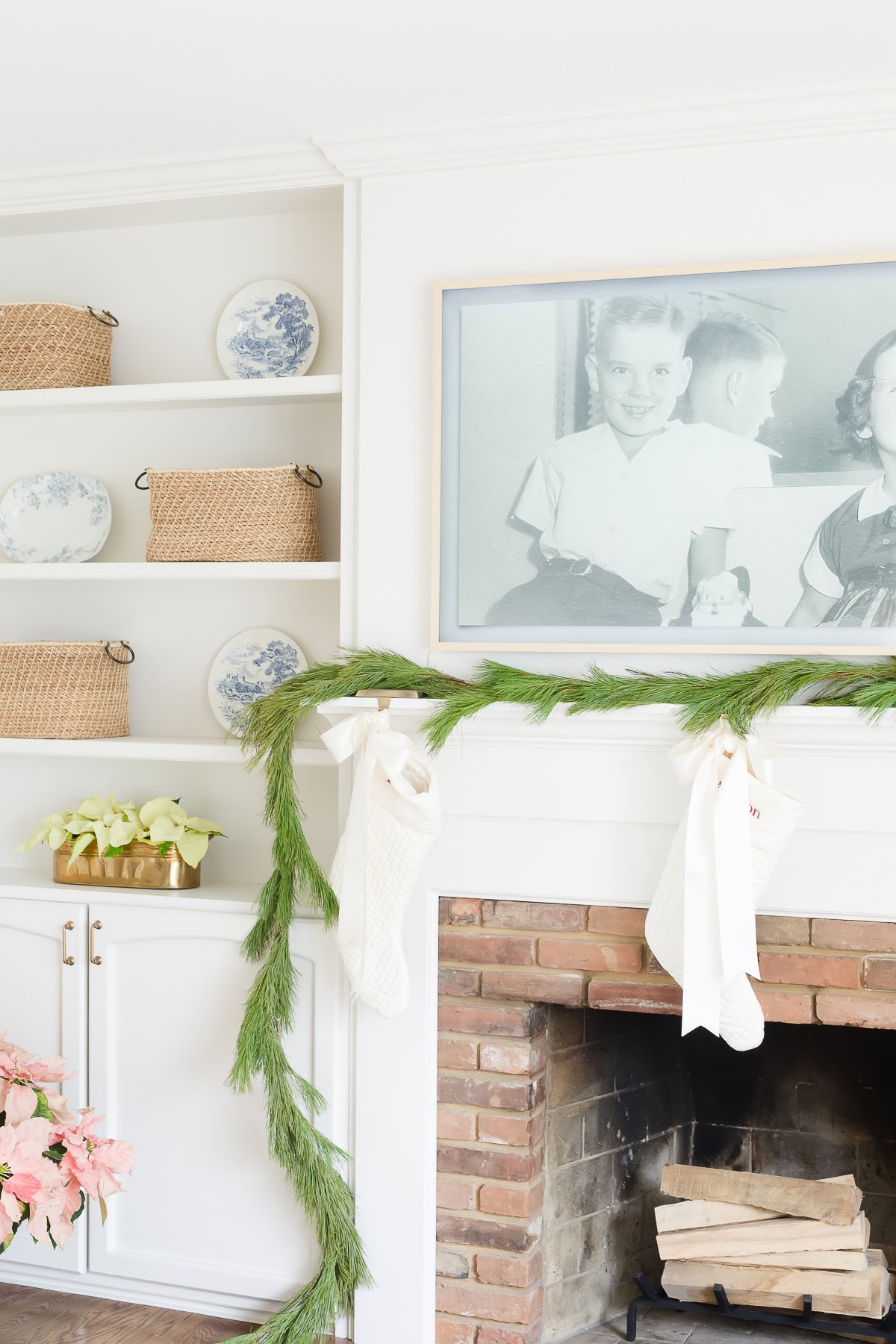
- On the SmartThings App, select your Frame TV.
- Tap ‘Art Mode’ > ‘Add Your Photos’.
- Select photos (select optional ‘Slideshow’) and click ‘Save on The Frame’.
The photo above is our original 2017 Frame TV with a mat. It was an image I pulled from a Christmas card of my Mom and Uncle in the 50’s!
I hope you enjoy mixing up your artwork as much as I do!
More Art Ideas

.jpg?w=1300&fit=1300,800&ssl=1 "This Summer’s Top Nail Art Trends Are All About Feel-Good Fi…")


